
Thailand eSIM on iPhone & Samsung: Setup Guide 2026
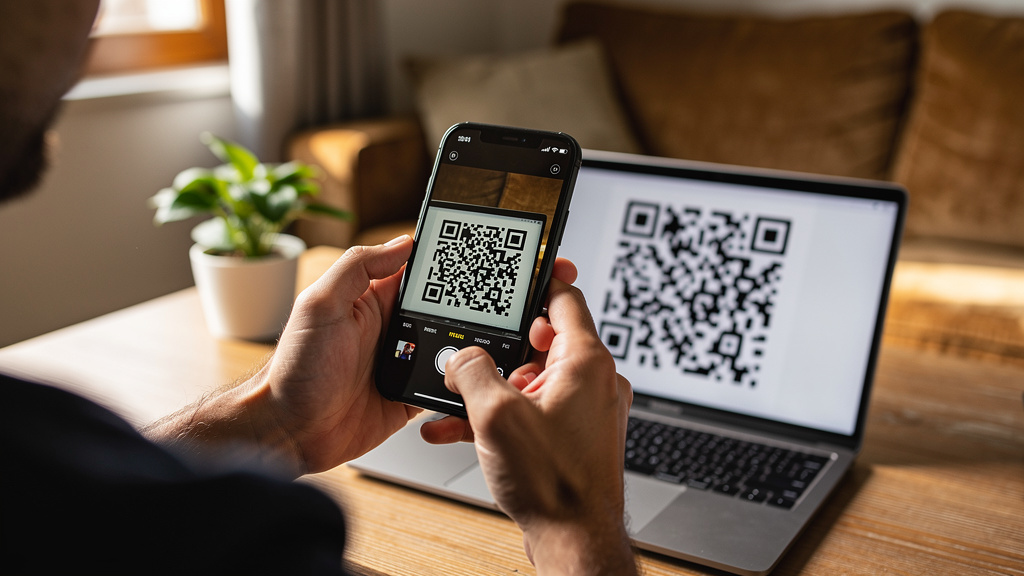
Our general installation guide covers the basics — this page goes deeper per model: exactly where to tap on iPhone and Samsung, how dual SIM behaves, and what to do when it doesn't work.
1. Check your phone supports eSIM
Do this before buying anything. Two requirements:
- eSIM hardware. Dial *#06# — if you see an EID number, your phone has eSIM hardware. No EID, no eSIM — buy a physical SIM at the airport instead.
- Carrier-unlocked. A phone locked to one carrier may refuse other eSIMs. On iPhone: Settings > General > About > Carrier Lock should say "No SIM restrictions".
| Brand | eSIM models | Watch out |
|---|---|---|
| iPhone | 11, 12, 13, 14, 15, 16 (non-China) | Mainland-China iPhones (16 and older) have no eSIM hardware |
| Samsung | Galaxy S20 and newer, Z Fold / Z Flip, Note 20 | Some carrier or regional variants hide the eSIM option |
| Google Pixel | Pixel 3 and newer | Pixel 3/3a from some carriers lack eSIM |
2. Install on iPhone
Install on Wi-Fi before departure — you need internet to download the eSIM profile.
- Go to Settings > Cellular > Add eSIM.
- Tap Use QR Code and scan the code from your RoamThai email. (No second device? Enter the SM-DP+ address and activation code manually.)
- Label it "Thailand" when asked — you'll thank yourself later.
- When iPhone asks about the Default Line, keep your home number for calls/SMS and set the Thailand eSIM for Cellular Data.
- Leave Data Roaming OFF for now — you'll switch it on after landing (step 4).
3. Install on Samsung
- Go to Settings > Connections > SIM manager.
- Tap Add eSIM, then Scan QR code and scan the code from your email.
- Name it "Thailand" and set it as the preferred SIM for mobile data (keep your home SIM for calls/SMS).
- On some models the eSIM installs but stays off until you toggle it on in SIM manager — check the switch is green.
Menu names vary slightly by One UI version — "SIM card manager" on older versions is the same screen.
4. After landing: data roaming on
This is the step most people miss. Travel eSIMs connect to Thai networks (DTAC, AIS, True) as roaming, so:
- iPhone: Settings > Cellular > tap the Thailand eSIM > turn Data Roaming ON.
- Samsung: Settings > Connections > Mobile networks > Data roaming ON (applies to the active data SIM).
- Important: make sure roaming is OFF for your home SIM — otherwise your home carrier may bill you.
Data usually starts within a minute or two. If not, toggle airplane mode on and off once.
5. Troubleshooting
"Unable to activate eSIM" / stuck on activating
You're probably not on Wi-Fi, or the QR code was already used. Connect to stable Wi-Fi and retry. Each QR code installs once — if you deleted the eSIM, contact [email protected] for a reissue.
No signal after landing
Checklist: (1) Data Roaming ON for the eSIM line, (2) the eSIM is the selected data line, (3) airplane mode toggled once, (4) phone restarted. Still nothing? Try manually selecting another network (AIS, True or DTAC) in network settings.
Phone says "No SIM restrictions" but eSIM won't install
Some corporate or carrier-flashed firmware blocks eSIM even on "unlocked" phones. Update to the latest OS version first — Samsung in particular fixed several eSIM bugs in updates.
Data works but very slow
First check you're on 4G/5G, not 3G — force LTE/5G in network settings if needed. On "unlimited" plans, note the high-speed fair-use cap: after it, speed drops but data keeps working.
Bottom line: install on Wi-Fi before you fly, flip data roaming on after landing, keep your home SIM for calls. Get your Thailand eSIM →
FAQ
Which iPhones support eSIM for Thailand?
iPhone 11 and newer support eSIM, including iPhone 12, 13, 14, 15 and 16 bought outside mainland China. Note: iPhones sold in mainland China (iPhone 16 and older) have no eSIM hardware at all.
Which Samsung phones support eSIM?
Galaxy S20 series and newer, Galaxy Z Fold/Flip series, and Galaxy Note 20 series generally support eSIM — but some carrier-branded or regional variants don't. Check Settings > Connections > SIM manager for an "Add eSIM" option.
Do I need to turn on data roaming for my Thailand eSIM?
Yes. Travel eSIMs connect as roaming on Thai networks, so Data Roaming must be ON for the eSIM line. Turn roaming OFF for your home SIM to avoid surprise charges.
Can I keep my home number while using a Thailand eSIM?
Yes — that's the point of dual SIM. Keep your home SIM active for calls and SMS (including bank OTP codes) and set the Thailand eSIM as the data line.